 Hisashi Space
November 8, 2026 · 25 min read
Claude Skills Explained: Which Instructions Should Become a Skill, and How to Create One in Claude Code

Claude skills, explained with the five I use every single day. There are 41 of them in my skills folder.
Each one is a folder with one text file in it. And each one is an instruction I got tired of typing.
I made a video about it. This article has what the video has no room for: what the official docs say about how skills load, where they live and which frontmatter fields exist, what is really inside my five skills (translated into English, because I write them in Japanese), the small script that opens one of them for me, a SKILL.md you can copy, and how to test that Claude actually opens it.

The short version
- A skill is a folder with a
SKILL.mdfile in it. At the top, a name and a description. Below that, the steps. - Claude keeps only the name and description of every skill in view. It opens the full file only when your request matches the description.
- So you can have dozens of skills, and they don't crowd out the actual work.
CLAUDE.mdholds what is always true. A skill holds how to do one job. A chat prompt is something you type every time.- My five: finding a lost conversation, making images without a per image bill, using websites I'm logged into, posting from a real iPhone, and stopping a mistake from happening again.
- The part of a skill that makes it better than a fresh prompt is the traps: the things that went wrong once and are now written down.
- The description decides whether a skill is ever used. Write it with the words you actually say.
I have run my own company in Japan for 22 years. Claude Code does most of my daily work: videos, posts, articles. Everything about my skills below comes from the files themselves. I opened each one again for this article.
Why Claude forgets your instructions

Here is the problem skills solve. You explain something to Claude. It does it well. Then next week, in a new chat, it has no idea.
So you explain it again. And again. With Claude Code doing most of my daily work, that was hours every week for me.
The explanation was never the hard part. The hard part was the details I had learned the hard way: which command times out, which screen to check first, which button must never be pressed. Those are exactly the details a new chat does not have.
What is a Claude skill (SKILL.md)
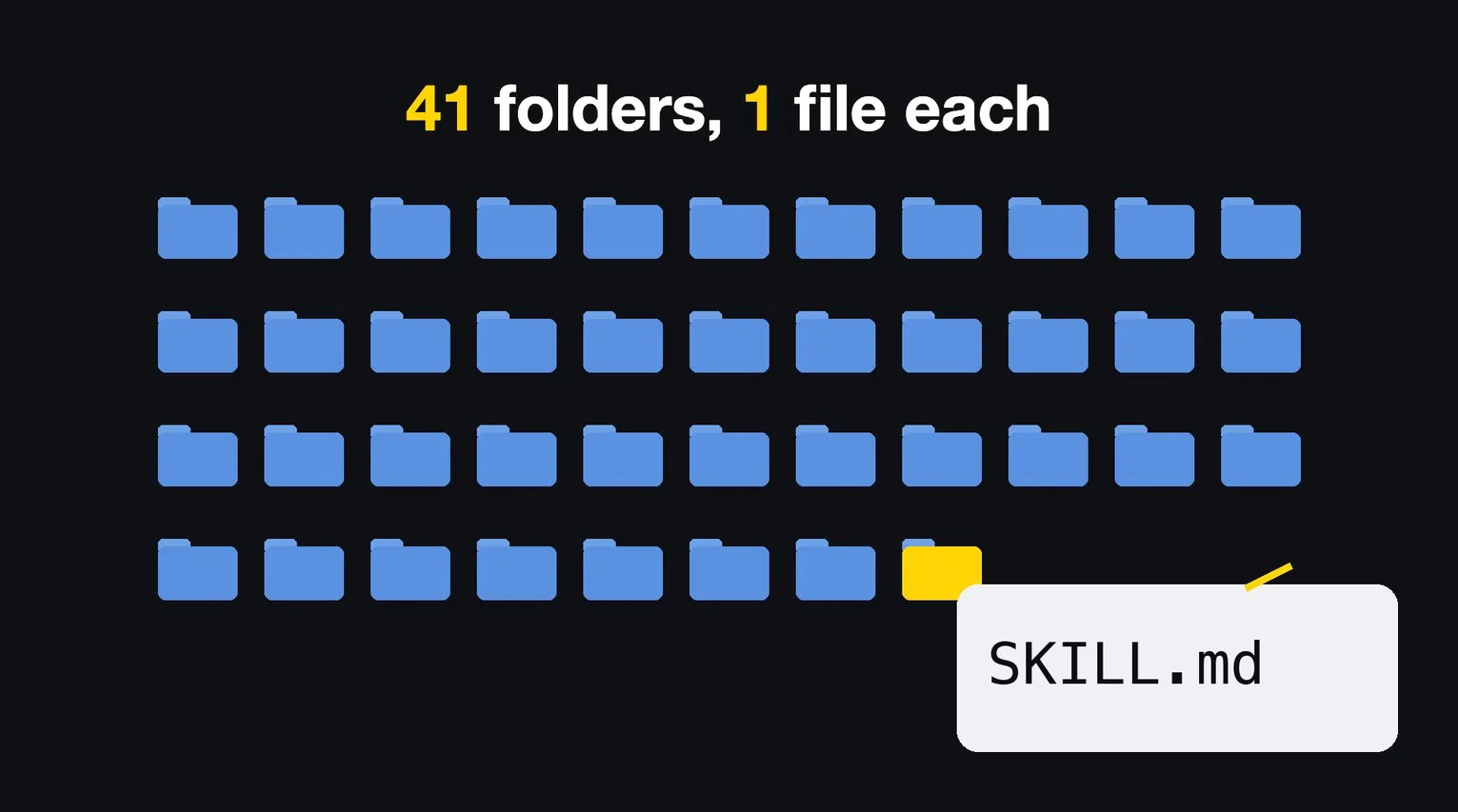
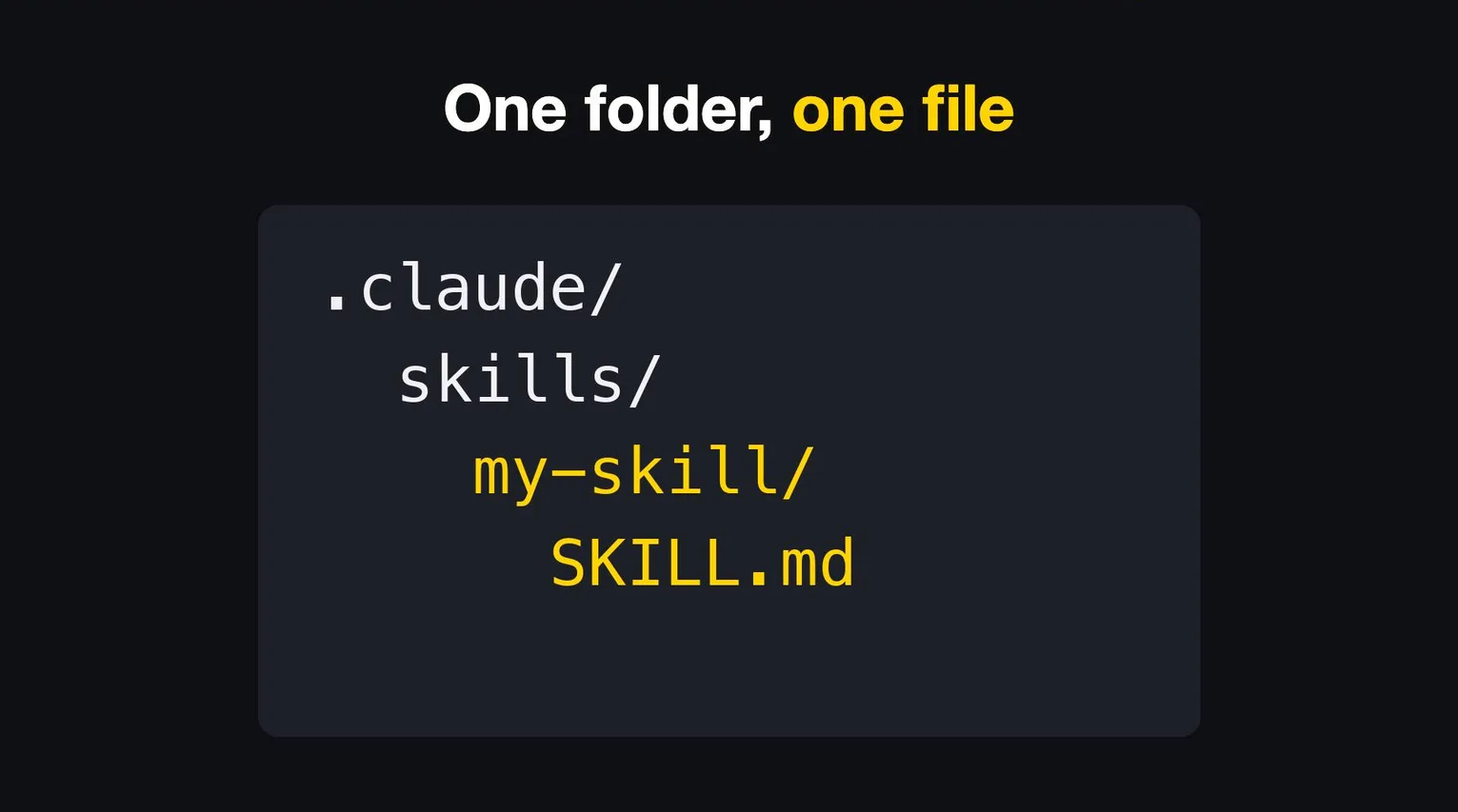
A skill is a folder with one file in it, called SKILL.md.
Think of it as a recipe card for Claude.
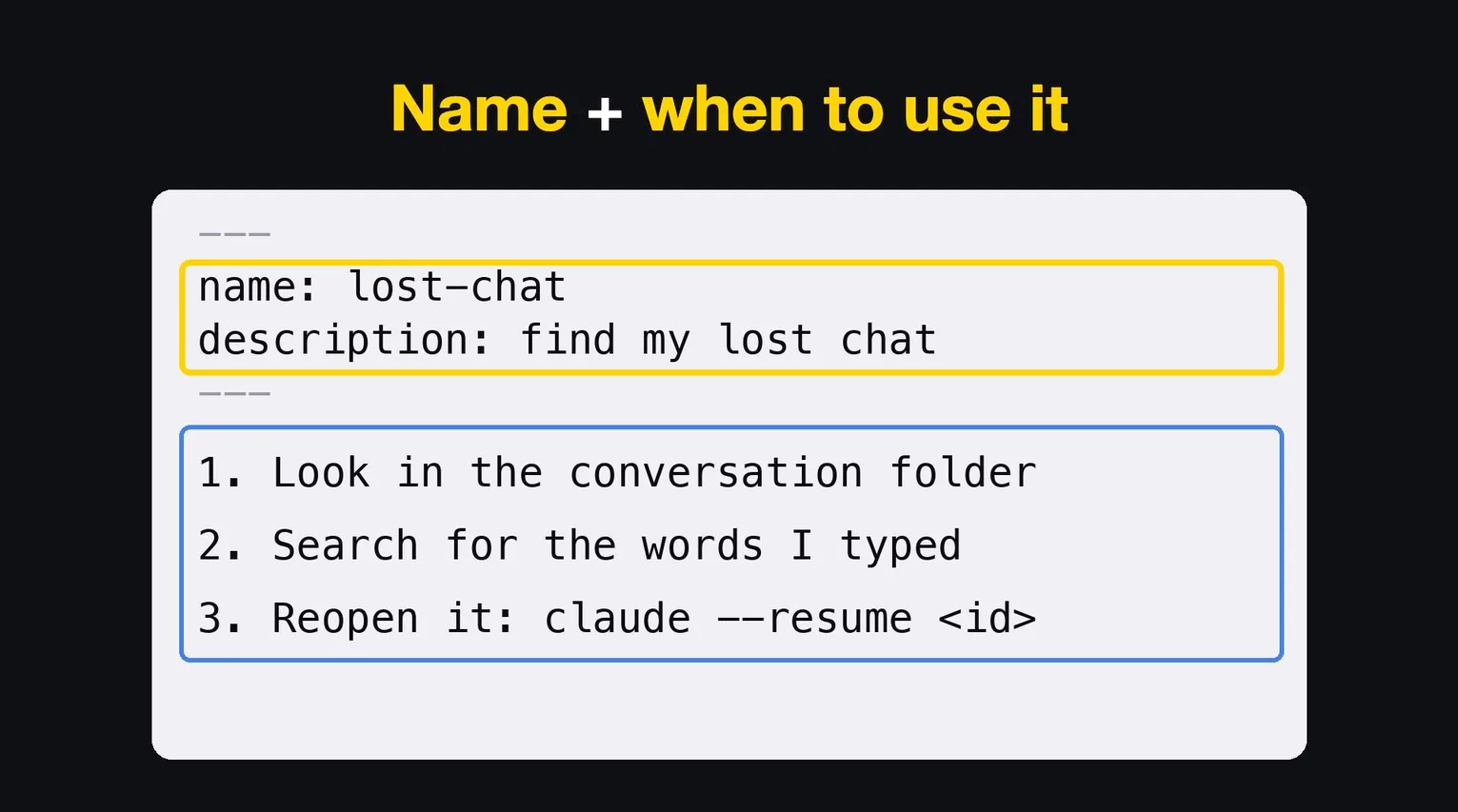
At the top of the card, between two --- lines, there are two fields: a name, and a description that says when to use it.
Below that, the steps, in plain Markdown.
The folder can hold more than the one file.
Scripts, reference documents, templates.
Of my 41 skills, 16 are just the one SKILL.md. The other 25 carry scripts or reference files next to it.
How Claude decides to open a skill
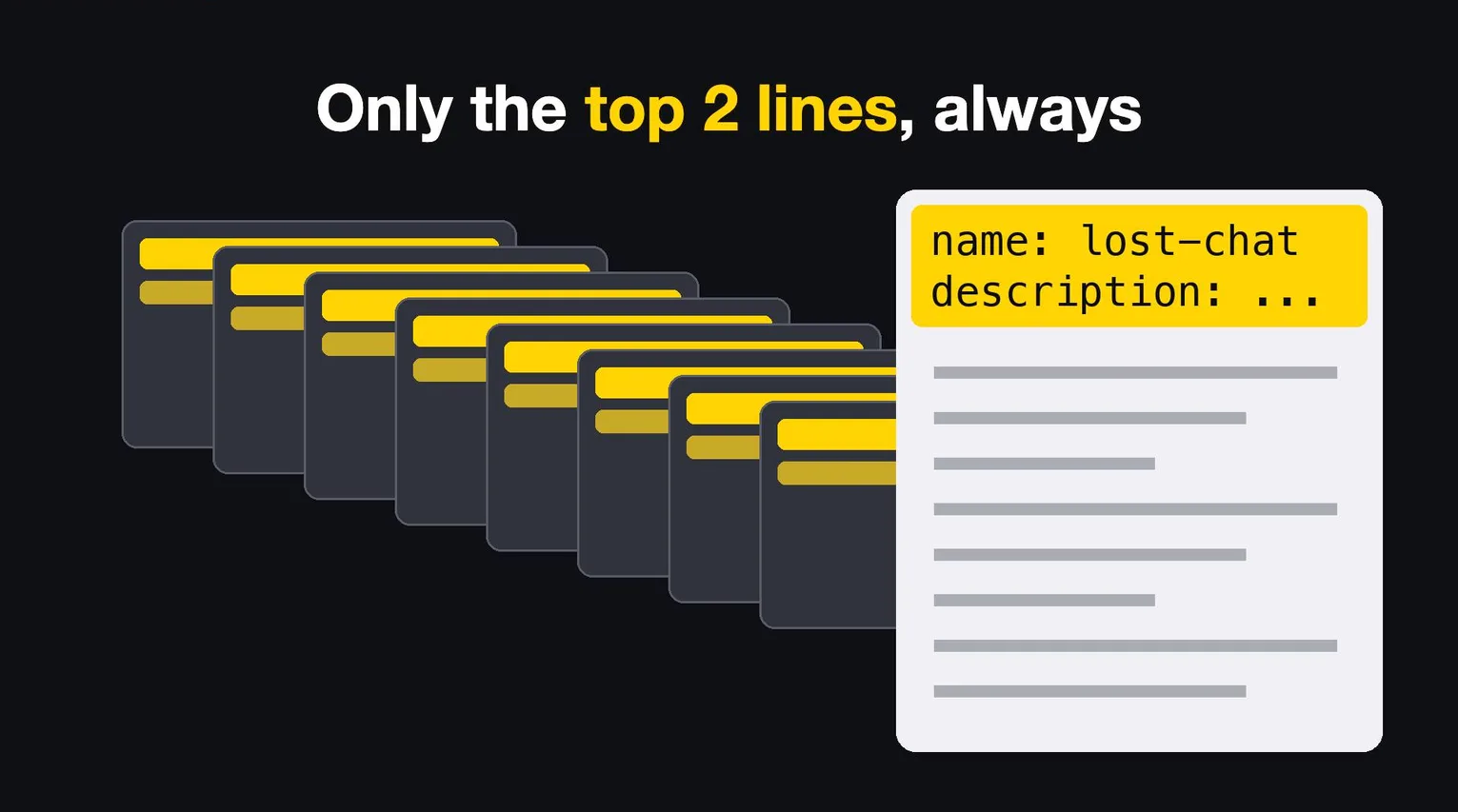
Here is the clever part. Claude only reads those two top lines all the time. It opens the full recipe only when your request matches the description.
Anthropic's documentation calls this progressive disclosure: "Claude loads information in stages as needed, rather than consuming context upfront."
It also says: "When you request something that matches a Skill's description, Claude reads SKILL.md from the filesystem using bash. Only then does this content enter the context window."
The docs give three levels:
| Level | When it is loaded | Cost in the docs | What it is |
|---|---|---|---|
| 1. Metadata | Always, at startup | About 100 tokens per skill | The name and description |
| 2. Instructions | When the skill is triggered | Under 5k tokens | The body of SKILL.md |
| 3. Resources | As needed | Nothing until accessed | Other files in the folder. Scripts run, and only their output enters the context |
That is why 41 skills don't get in the way. Forty of them sit as a few lines each until the request that needs one arrives.
You can also open a skill yourself.
In Claude Code, typing / and the skill's name runs it directly, for example /find-chat.
The docs also say custom commands have been merged into skills: a file in .claude/commands/deploy.md and a skill in .claude/skills/deploy/SKILL.md both make /deploy.
Where Claude Code skills live
Skills can live in two main places. In your own settings, so they work in every project. Or inside one project, so they travel with it.
The full list from the Claude Code docs:
| Where | Path | Who gets it |
|---|---|---|
| Personal | ~/.claude/skills/<skill-name>/SKILL.md |
All your projects on this machine |
| Project | .claude/skills/<skill-name>/SKILL.md |
Sessions in that repository. Commit it and your team gets it too |
| Enterprise | .claude/skills/<skill-name>/SKILL.md in the managed settings directory |
Every user where your organization deploys it |
| Plugin | <plugin>/skills/<skill-name>/SKILL.md |
Wherever the plugin is enabled, as /plugin-name:skill-name |
| Nested | <subdir>/.claude/skills/<skill-name>/SKILL.md |
Sessions started in or below that folder |
If two have the same name, the docs say: "Enterprise over personal, and personal over project."
A skill and a file in .claude/commands/ with the same name: the skill wins.
Mine are all personal. I move between a dozen projects in a day, and I want the same recipes everywhere.
Edits are picked up live.
The docs say Claude Code watches the skill folders and "picks up the change within the current session, without a restart."
The exception: if the top level skills folder did not exist when the session started, run /reload-skills.
The frontmatter fields
The Claude Code docs say: "All fields are optional. Only description is recommended so Claude knows when to use the skill."
If you leave out name, the folder name is used.
The fields I find worth knowing:
| Field | What it does |
|---|---|
name |
The command name in the / menu. Defaults to the folder name |
description |
What the skill does and when to use it. Claude uses it to decide when to open the skill |
when_to_use |
Extra trigger phrases or example requests, added to the description |
disable-model-invocation |
true means Claude never opens it on its own. Only you, with /name |
user-invocable |
false hides it from the / menu, so only Claude opens it |
allowed-tools |
Tools Claude can use without asking during the turn that runs the skill |
argument-hint |
The hint shown for arguments, like [issue-number] |
context |
fork runs the skill in a separate sub agent |
Two limits are worth knowing.
In Claude Code, the description and when_to_use together are cut at 1,536 characters in the skill listing.
For skills uploaded to claude.ai or the API, the rules are stricter: name is at most 64 characters of lowercase letters, numbers and hyphens, and description is at most 1,024 characters.
In practice, almost all of mine use only name and description.
One uses allowed-tools.
Two carry a license field.
Claude skills vs CLAUDE.md
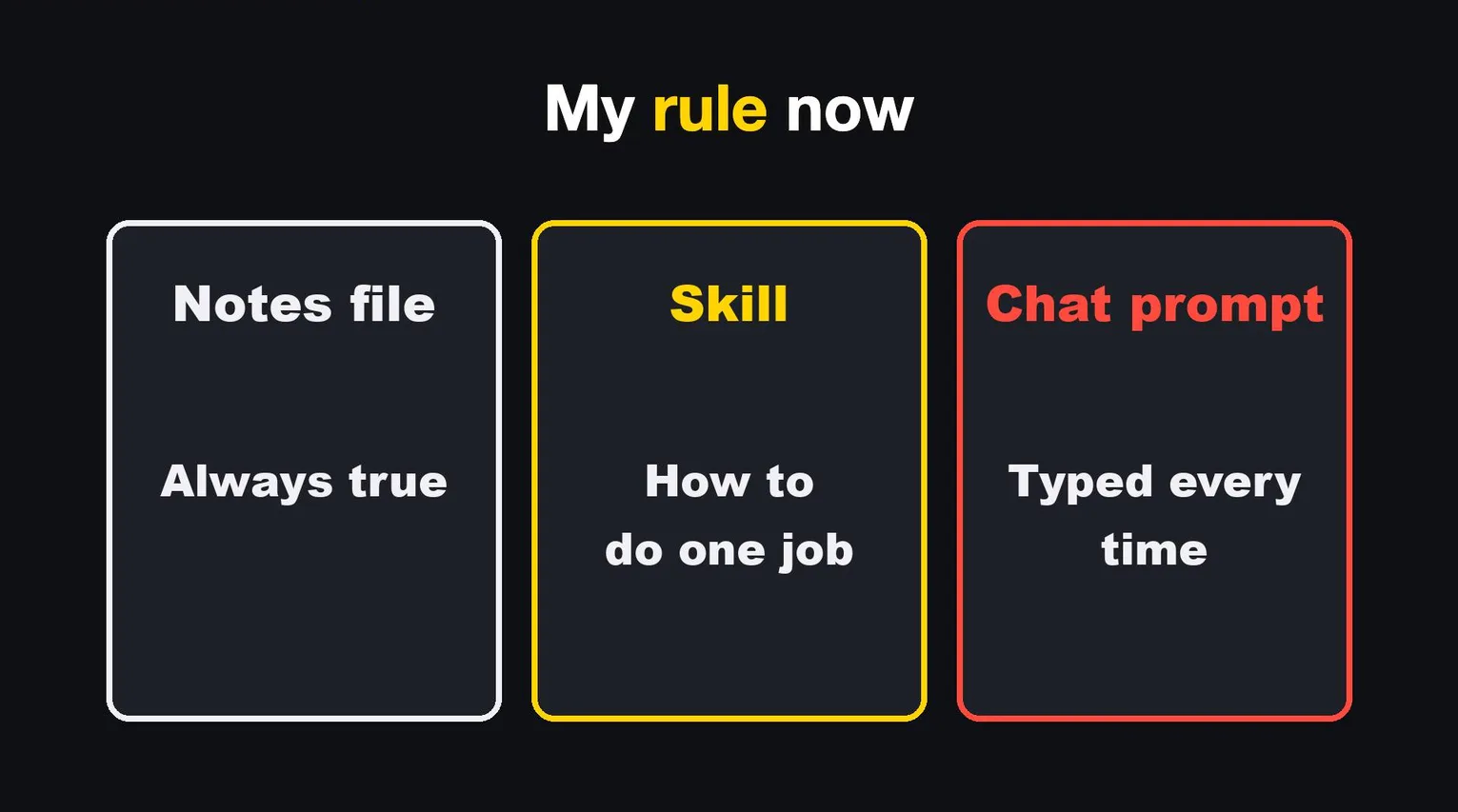
Why not put everything in CLAUDE.md, the notes file Claude reads at the start of every chat?
I tried that.
My notes file got long, and the long parts got skipped.
My rule now:
CLAUDE.md |
A skill | A chat prompt | |
|---|---|---|---|
| What goes in it | What is always true | How to do one job | What you want right now |
| When Claude reads it | At the start of every session | The description always. The body only when a request matches | Once |
| Cost when unused | All of it, every session | A few lines | Nothing |
| Do you type it again? | No | No | Every time |
One more line, because people mix them up: a skill is something Claude reads, so it can still be skipped or done wrong. When a step must never be skipped, I put a hook in front of it, a script that stops the action. I wrote about those in Claude Code Hooks Examples. Several of my skills below lean on one.
Claude skills examples: the five I use every day
Here are the five, side by side. The description column is the real one, translated.
| # | Folder name | What is in the folder | The description says (translated, shortened) |
|---|---|---|---|
| 1 | find-chat |
SKILL.md (125 lines) and a Python script |
Finds a lost Claude Code conversation in the saved records and makes it reopenable. Triggers: "the chat log is gone", "can't find the earlier chat", "--continue opened a different chat" |
| 2 | codex-image |
SKILL.md (56 lines) and a shell script |
Generates and edits images through the Codex CLI's built in image tool on a ChatGPT login, so there is no per image API charge. Blog headers, figures, thumbnails |
| 3 | kagemusha |
SKILL.md (497 lines), two Python tools, tests |
Operates the site apps made with Kagemusha, still logged in. No password, no two step login, no stolen focus |
| 4 | iphone-sns-post |
SKILL.md (83 lines). The tools live in another folder |
Posts short videos from the iPhone apps (YouTube, Instagram, TikTok). Triggers: "post it from the phone", "post on iPhone" |
| 5 | repeat-offense with prevent-recurrence |
SKILL.md (68 lines) and SKILL.md (94 lines) with one worked example |
When a mistake I already pointed out happens again: find why the rule didn't hold, build a check that stops it, and break it on purpose to see it fire |
The cards in the video use short English examples like lost-chat and post-from-iphone.
The real folder names are the ones above.
1. Finding a lost conversation
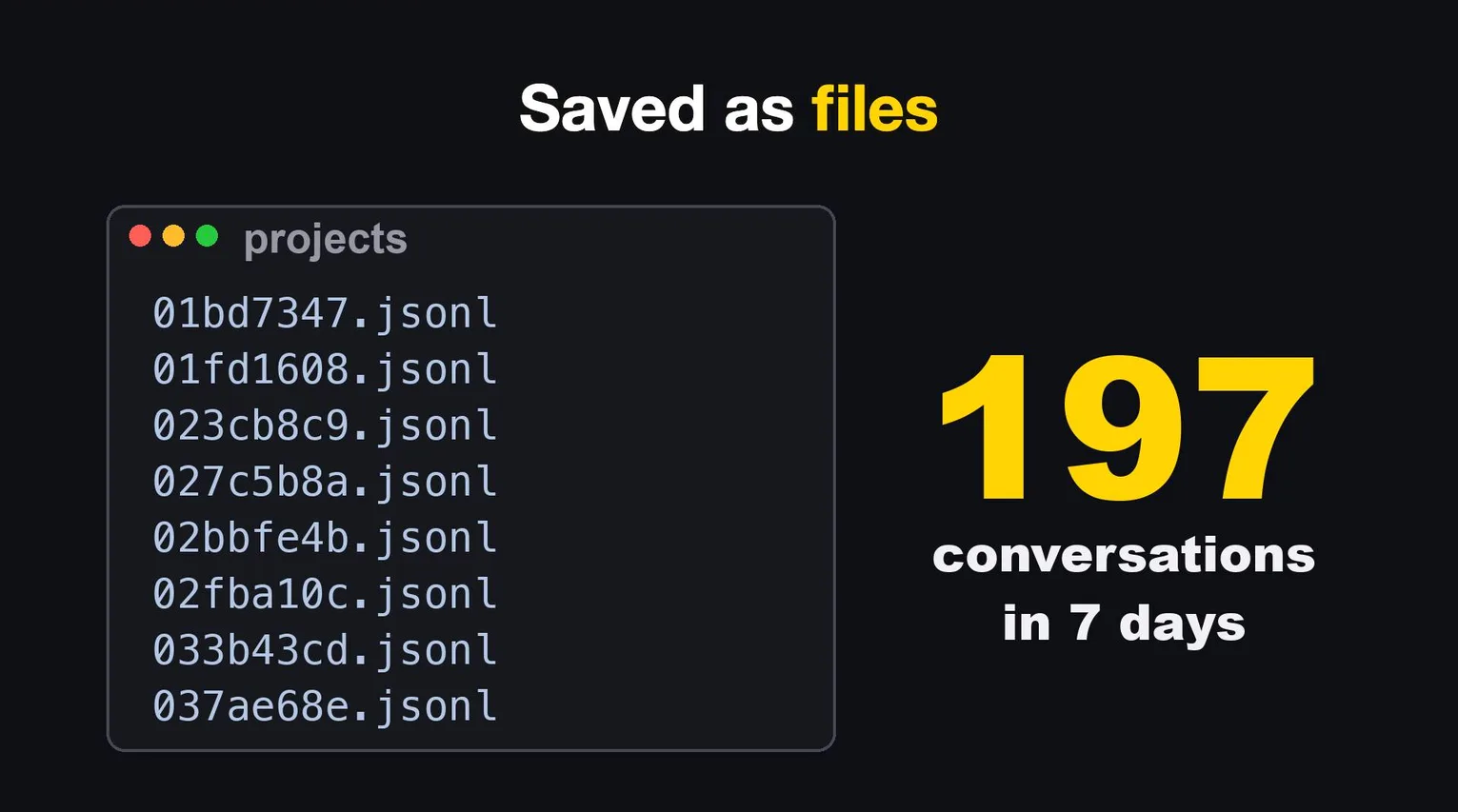
You restart, you type continue, and Claude opens the wrong chat. The work you were in the middle of seems gone.
It isn't gone. Claude Code saves every conversation as a file on your Mac. In the seven days before I made the video, I had 197 of them.
The skill tells Claude three things: where those files live, how to search them by the words I typed, and how to reopen the right one with claude --resume.
Where they live, as the skill writes it:
~/.claude/projects/<the working folder's path, with "/" turned into "-">/<conversation id>.jsonl
The skill also names the two usual reasons a chat looks lost:
| What happened | Why it looks lost |
|---|---|
claude --continue joined a different conversation |
It opens the newest one in that folder, not the one you meant |
| The working folder was a symbolic link | The files are filed under the real path, so Claude looked in the wrong place |
The search order is written down too:
- Ask which folder the session was started in. That is the strongest clue.
- List that folder's conversations, newest first, and look at the dates and first messages.
- If nothing fits, search by words from that piece of work.
- Still nothing: search every folder. Sessions are often started somewhere else.
- Still nothing: also search words I never typed, like a company name or an error message.
- After two misses, show two or three candidates and ask me to pick.
The trap that made this a skill is in the search itself. If you count every conversation that contains a word, every conversation matches, because the shared instructions and Claude's replies contain the same words. So the script only reads what a human typed. This is the filter from the skill's script, translated and shortened:
def human_says(path):
    """Only the lines a person typed. Replies, tool results and shared instructions are skipped."""
    out = []
    for line in open(path, encoding='utf-8', errors='ignore'):
        if '"type":"user"' not in line:
            continue
        row = json.loads(line)
        content = row.get('message', {}).get('content')
        if isinstance(content, list):   # tool results are lists, not typed text
            content = ''.join(p.get('text', '') for p in content
                              if isinstance(p, dict) and p.get('type') == 'text')
        if not isinstance(content, str):
            continue
        s = ' '.join(content.split())
        if not s or s.startswith('<') or '<command-message>' in s:
            continue                    # system text and slash command boilerplate
        if s.startswith('This session is being continued') or s.startswith('[Request interrupted'):
            continue                    # summaries and interruption markers
        out.append(s)
    return out
One more trap the skill writes down, because it fooled me once.
When you reopen a session with --resume, the session gets a new id, but the record keeps being added to the original conversation's file.
No file with the new id is made.
So a folder with ten traces of sessions and only one conversation file is normal. That one file holds them all.
Without the skill, Claude would guess, or tell me the chat was lost. With it, finding the right one takes one sentence from me.
2. Making images without an image bill
Thumbnails, blog headers, diagrams. Paying per image adds up fast.
This skill has Claude call another AI tool I already pay for, through my normal monthly plan. It runs the Codex CLI, which can generate images with its built in image tool while logged in with a ChatGPT account. No API key, so no extra charge per picture. The skill is honest about the cost that remains: it uses the plan's allowance, and image generation uses it three to five times faster than ordinary chat.
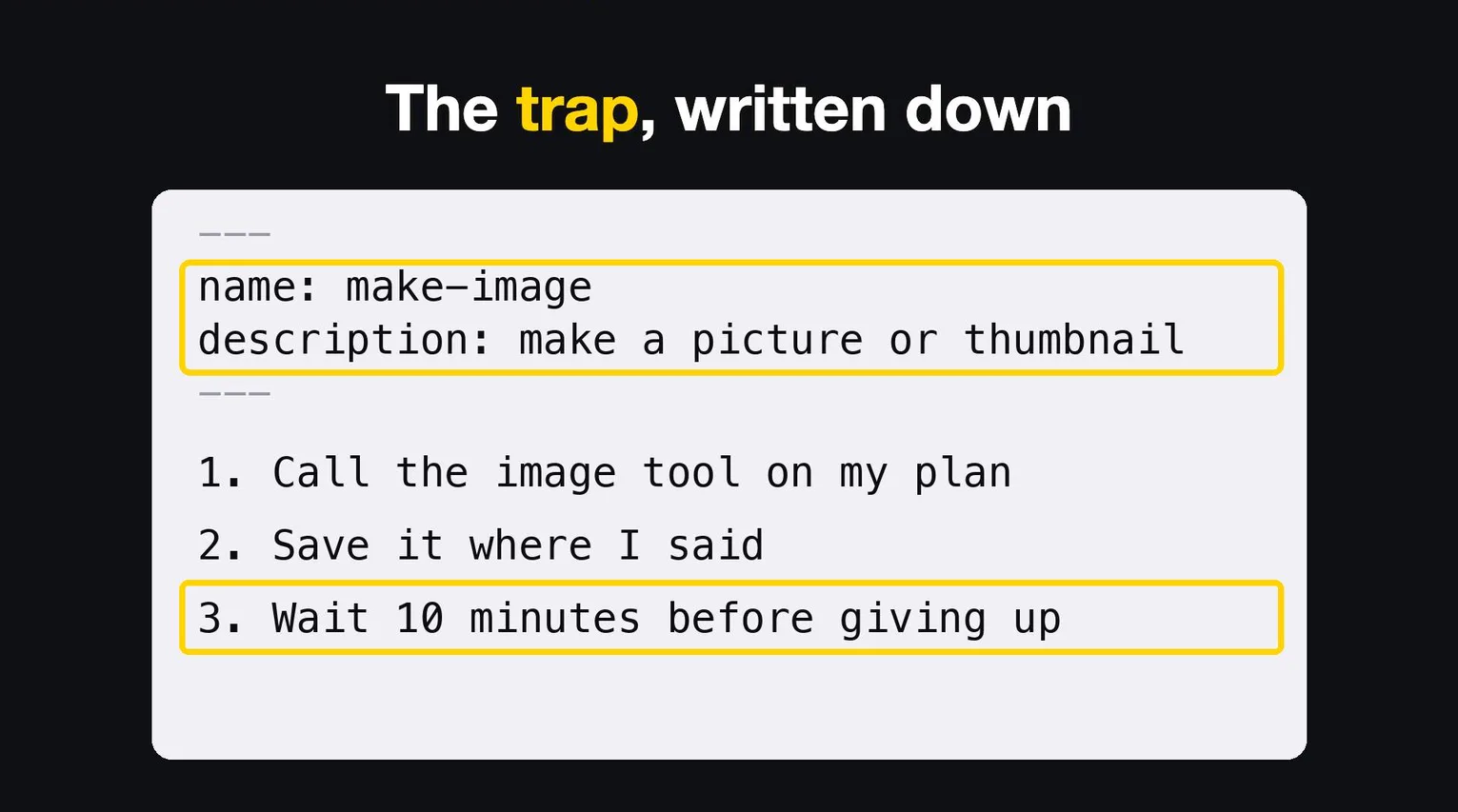
The steps hold the little traps. One image takes one to three minutes. Claude Code's Bash tool gives up after two minutes by default, so the skill says: set the timeout to ten minutes before calling it.
That is the trap in the video. The script next to the skill holds more, each one written next to the date it was found:
| Trap | What happened | What the skill or script does |
|---|---|---|
| Timeout | One image takes 1 to 3 minutes. The default 2 minute limit killed it halfway | The skill says: set the Bash timeout to 600000 ms (10 minutes) |
| Waiting forever | With standard input left open, Codex printed "Reading additional input from stdin..." and never started | The script closes standard input |
| Approval prompts | Without it, the image tool's file commands stopped and waited for approval | The script runs Codex with approval_policy="never", inside a sandbox that can only write to the output folder |
| The prompt eaten as an image | --image takes several values, so a prompt placed after it was read as another image path |
The prompt goes before the images |
| Default model refused | The default model returned "model is not supported" on a ChatGPT login | The script names a model, and can be changed with an environment variable |
| Plugin install error | Each start tried to install bundled plugins and sometimes failed with "Directory not empty" | The script turns off the plugins image generation doesn't need |
| Saved somewhere else | Sometimes the image landed in Codex's own folder instead of the path asked for | The script finds it there and copies it |
| Out of allowance | "usage limit" | Wait. Never switch to API billing |
| Failure | Any error | Report it and wait. Do not quietly try again |
The core of the call, with my own wrapper's lines removed:
codex exec --model "$MODEL" \
  --sandbox workspace-write -c 'approval_policy="never"' --skip-git-repo-check \
  --cd "$OUTDIR" "$INSTRUCTION" --image "$REF" </dev/null
The instruction it sends starts with one line that matters more than the rest: use the built in image tool only, never the command line fallback that needs an API key. That one line is the difference between a monthly plan and a per image bill.
I use it for thumbnails and article images, so it runs many times a day. A small saving, repeated, becomes a big one.
3. Using websites I'm logged into
Most browser tools for AI get logged out, or stop at a two step login.
So I use small apps, one per website, that stay logged in. I make them with Kagemusha, a Mac app of mine that turns a website into its own app. Each one has Chrome inside, and its login lives in its own profile folder. Every time one starts, it opens a local port that a program can connect to. Whether that port opens at all is a setting in each app, "Allow control by AI", and new apps start with it off.
The skill tells Claude how to step into an app I already have open, quietly, in the background, without stealing my screen:
python3 ~/.claude/skills/kagemusha/kagemusha.py list search            # which apps exist
python3 ~/.claude/skills/kagemusha/kagemusha.py connect "Search Console" # prints the port
python3 ~/.claude/skills/kagemusha/cdp.py <port> open "https://search.google.com/search-console"
python3 ~/.claude/skills/kagemusha/cdp.py <port> text                    # read the page
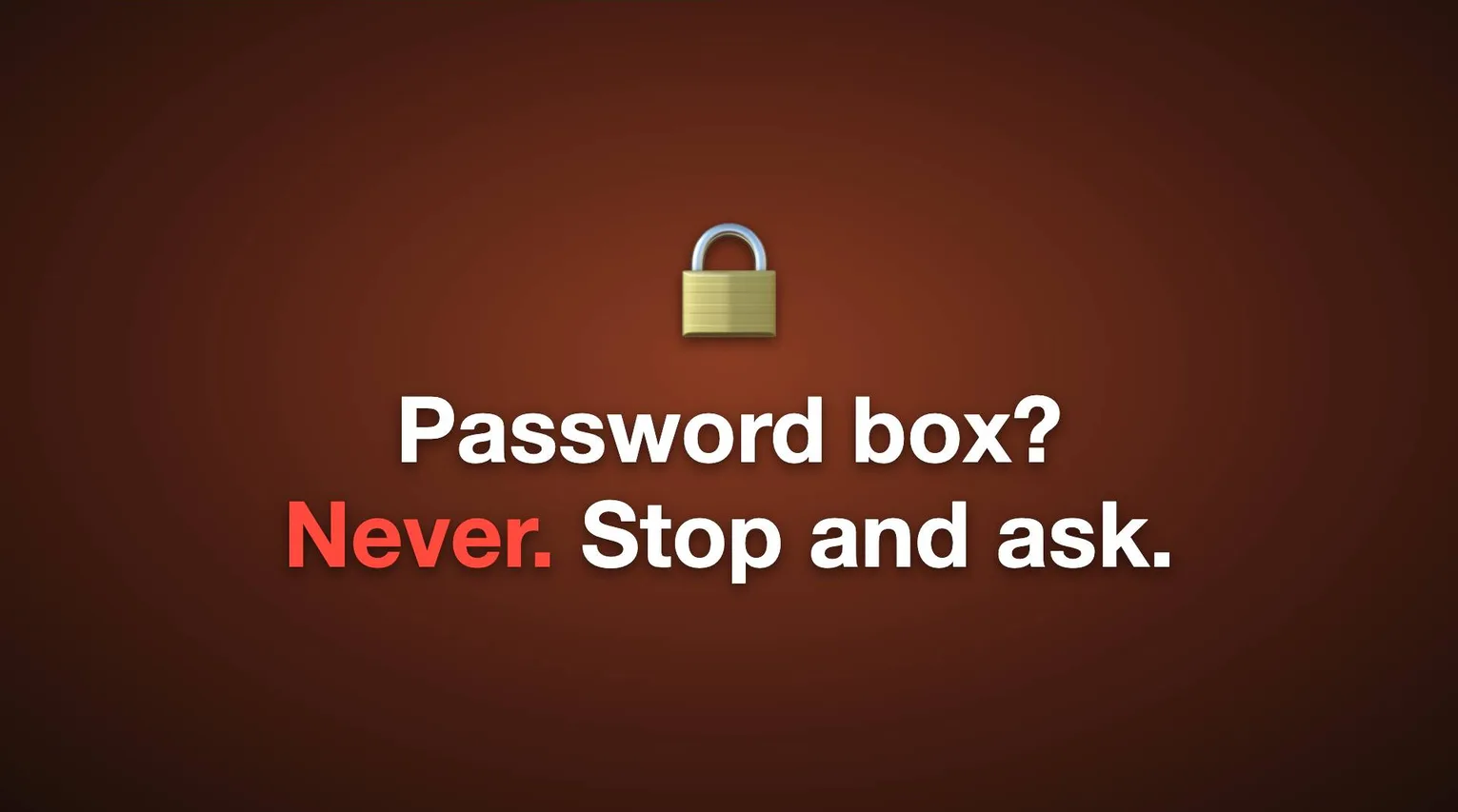
It also holds my hardest rule. Never click into a password box. If Claude hits a login screen, it stops and asks me.
This is the longest of my skills, 497 lines, because every rule in it came from something that went wrong:
| Rule in the skill | Why it is there |
|---|---|
| Never click, focus or type into a password field | A cursor left in one kept macOS secure keyboard entry on, and my app switching and Japanese input stopped across the whole Mac until morning |
| Ask me to log in. Never ask me for the password | If I log in in the app, the login stays in the profile, and Claude continues in the same window |
| A login screen has three meanings | Some Google services ask you to confirm your identity after a while even with a valid login. It may also be the wrong app's port. Only the third case is a real logout |
| Do not connect with Playwright | A sign up sent through Playwright was refused as "Bot access denied", and after that it failed even when I pressed the button myself. The same form had worked the day before through the skill's own tool |
| Wait 20 to 45 seconds between page moves on the same site, and don't reload | Opening one search page ten times in a row turned two apps blank |
| Never force quit an app | A forced quit lost a login |
| Never bring a window to the front unless asked | Bringing an app forward took my keyboard for about 2.8 seconds, measured |
| Say what you are about to do first | I might be using that app at the same moment. Two sessions on one port once closed each other's tab |
I use it for search data, ad reports and payments. Pages where a logout would stop the whole job halfway.
4. Posting from a real phone
One of my channels posted short videos from a computer. TikTok labeled them as AI, and they got zero views.
So now Claude taps through the apps on an actual iPhone plugged into my Mac. Same steps a person would take. The tool is a UI test that runs on the phone, so it presses the same buttons my thumb would.
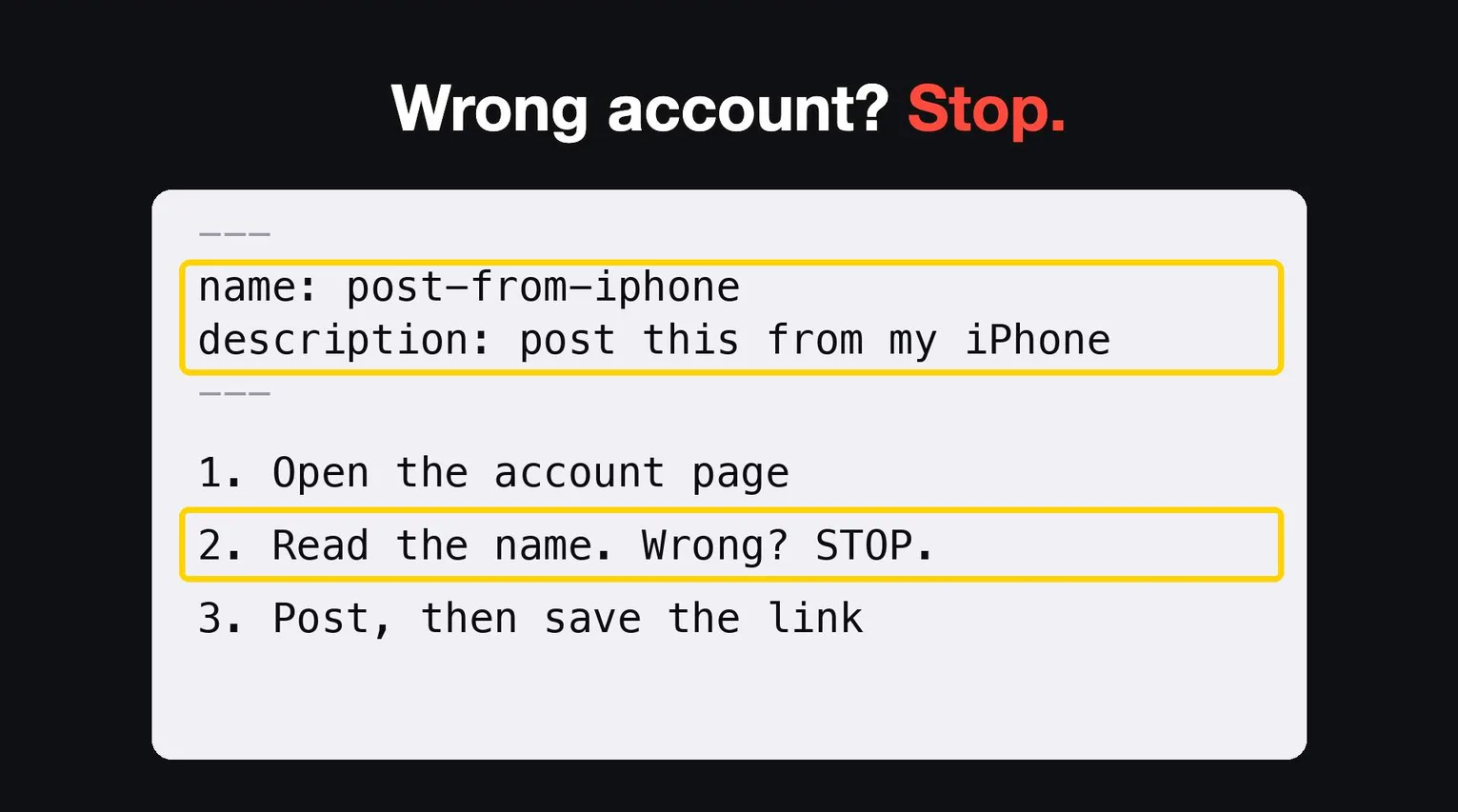
Step one in that skill is boring, and it matters most. Open the account page and read the name. If it's the wrong account, stop. I once posted to the wrong one.
The skill marks this step as one that can't be skipped:
| Step | What the skill says |
|---|---|
| Check the account | A test opens the app's profile and looks for the expected name at the top of the screen. Wrong name: "the account is different", stop |
| The switcher trap | If the account switcher list is open, the check fails, because that list shows every account's name |
| How long it lasts | A passed check is good for 20 minutes. Every later step must name the same account, or it is refused |
I wrote the account gate itself up in the hooks article, so here is the rest of the skill.
The same skill posts to YouTube, Instagram and TikTok. The steps differ for each app, so they're all written down, button by button. Instagram, for example, as the skill has it: the add button, then Reel, the video, Next, close the editing app's promotion if it shows, Next, edit the cover, camera roll, the cover image, done, the caption, check that the AI label switch is off, Share.
The rest of what the skill holds:
- A dry run first, which stops just before the post button.
- A hashtag check before posting, with a limit per app.
- Before each press, look at the last screenshot. Coordinates differ between phone models.
- Stop before any button that promotes, pays or buys.
- On TikTok, go back to the profile page when done and leave it there.
- Collect the three links and write one line in the record.
5. Stopping the same mistake from happening again
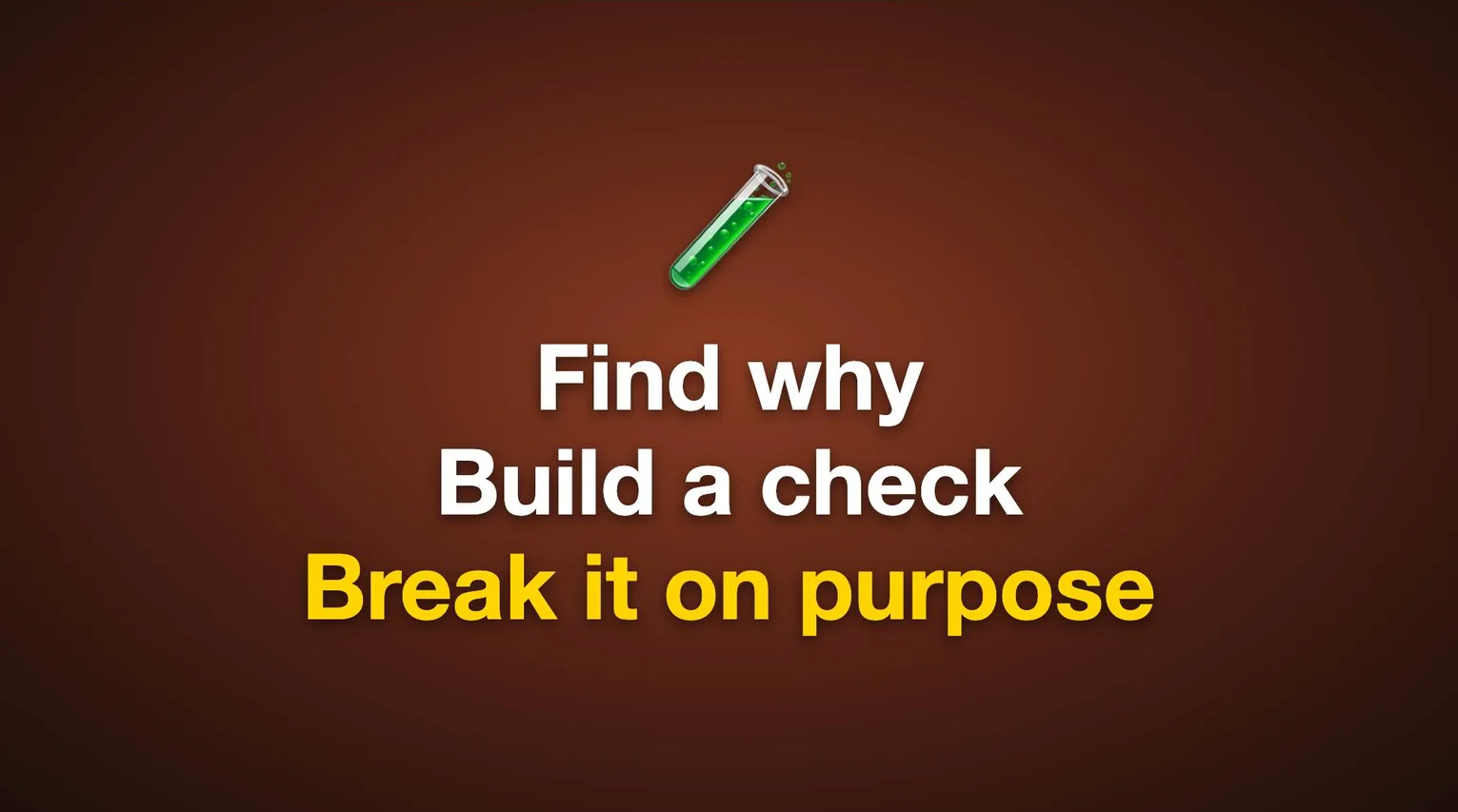
This is the one I use most. When Claude makes the same mistake twice, I type one phrase. It means: prevent it from happening again.
That phrase wakes up a small script that checks every message I send.
It is a UserPromptSubmit hook: it runs when I press enter, before Claude sees the message.
When it sees the words, it adds a note telling Claude to open the skill.
This is the script, with the Japanese phrases and message translated:
#!/bin/bash
# UserPromptSubmit: if I ask to prevent a repeat, Claude must run the repeat-offense skill.
# Remembering is not a mechanism.
INPUT=$(head -c 200000)
PROMPT=$(printf '%s' "$INPUT" | python3 -c '
import json, sys
try:
    print(json.load(sys.stdin).get("prompt", ""))
except Exception:
    pass
' 2>/dev/null)

case "$PROMPT" in
  *"prevent recurrence"*|*"never happen again"*|*"same problem again"*|*"stop it with a mechanism"*)
    cat <<'MSG'
<system-reminder>
The user wants this prevented. Treat it as a mistake that was pointed out before.
Use the Skill tool to call repeat-offense, and do all of steps 2 and 3.
Find the cause in the rules, settings, records, memory and hooks, then add a check that stops it,
break it on purpose to see it fire, and report. Do not end with "I'll be careful" or "I wrote it down".
</system-reminder>
MSG
    ;;
esac
exit 0
Whatever a UserPromptSubmit hook prints is added to what Claude sees.
So the skill does not depend on its description matching. The note names it.
The skill has three steps. Find the real reason the rule didn't hold. Build a small check that blocks that exact mistake. Then make the mistake on purpose, and see if the check stops it.
The first step is the one I had to write down most carefully. "I wasn't careful" is not a reason. The skill makes Claude read the real files and name the type:
| Type | What it means |
|---|---|
| Not written | The rule exists only in my head |
| Buried | Written, but somewhere the work never passes through |
| Contradicting | Two documents, or a document and the code, say different things |
| No stop | Written and easy to find, but nothing happens if it is broken |
| The stop missed | A check existed, but its condition was too narrow, or it watched a different path |
| Not read | Claude could have found it and decided on its own instead |
For the second step, the other skill, prevent-recurrence, ranks the kinds of check, strongest first:
| Kind | Example from the skill |
|---|---|
| Make it impossible | Two copies of a setting become one source that generates both |
| Fail when it happens | A startup check, a test, or a hook that blocks the write |
| Name the cause | A vague error becomes one that says exactly what is wrong |
| Regular inspection | A command that prints the differences, used only with one of the above |
And the third step has its own line in that skill: a fix you didn't see fire is a fix you didn't make.
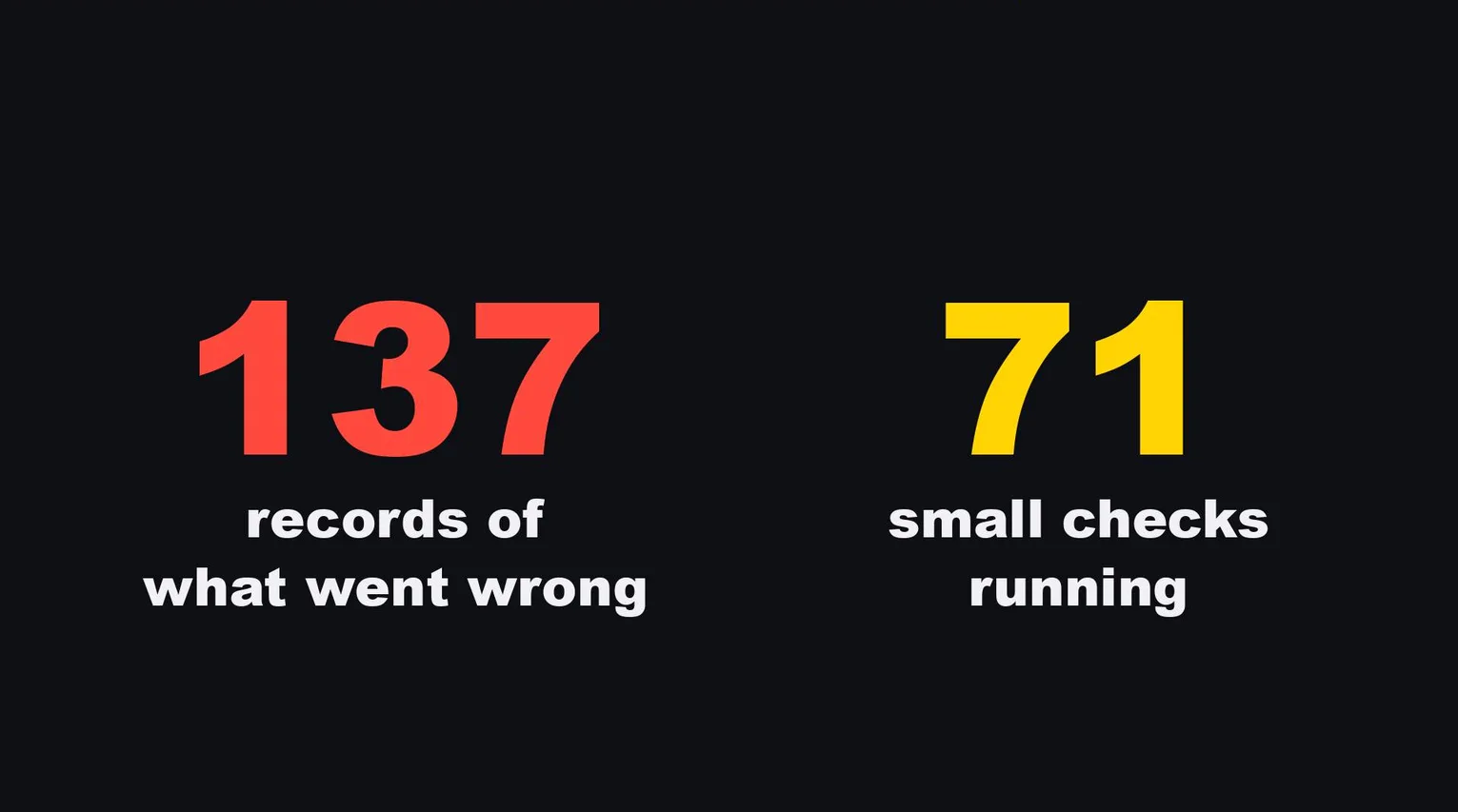
When I made the video, I had 137 written records of things that went wrong, and 71 of these small checks running. Today there are 139 records. Every one started as a mistake I saw too often.
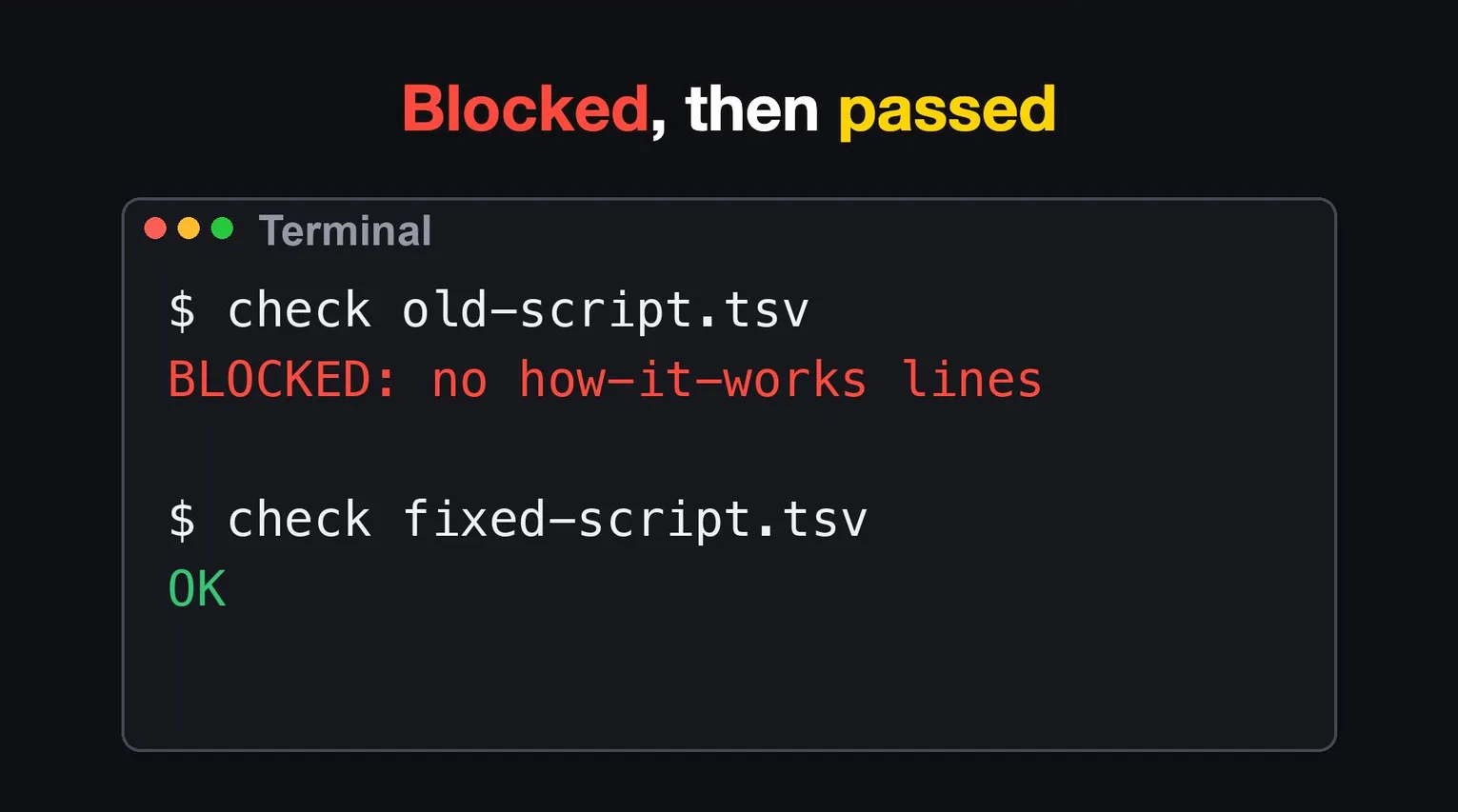
The morning I made the video, it happened again. I sent back a script for a short video, because it explained the result but not how the thing works or how to set it up. I typed the phrase. Claude found why my written rule didn't catch it: the rule was written, but the check only looked at who the video is for, what it covers and why it matters. It added a check that requires a "how it works" line and a "how to set it up" line in every script of that kind. Then it fed the check the old script. Blocked. Then a fixed copy. Passed.
Two skills, the same trigger words
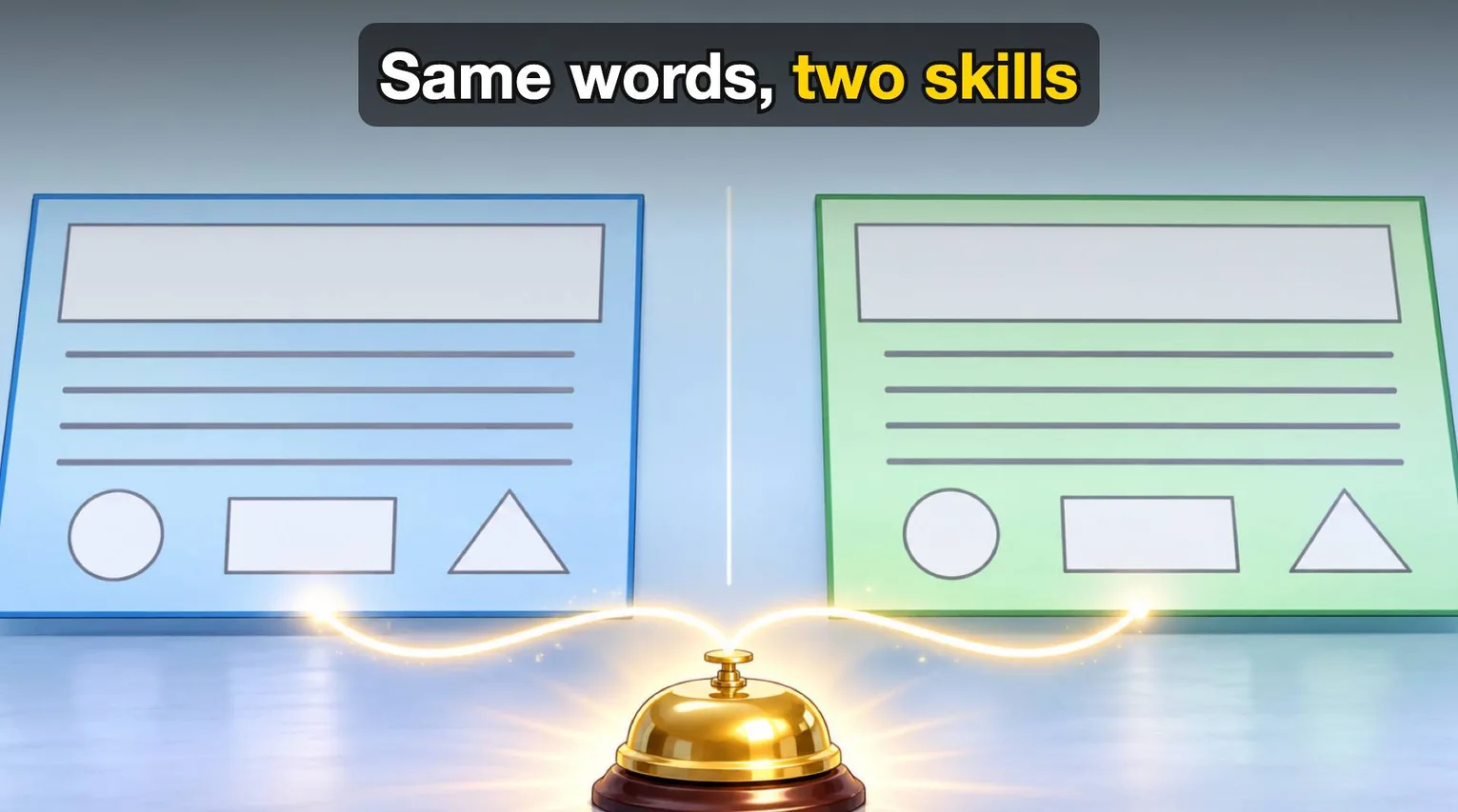
I have two skills that both answer to the prevent-it-again phrase. One digs into why. The other builds the check.
That only works because each one says clearly what it does and where it stops:
repeat-offense |
prevent-recurrence |
|
|---|---|---|
| When | A mistake I already pointed out happens again | Any problem that should never happen again |
| What it does | Reads every place a rule could live and names why it didn't hold | Picks the kind of check, places it, breaks it on purpose, and looks for the same hole elsewhere |
| Where it stops | Hands the building of the check to prevent-recurrence |
Just fixing a bug is a different skill. Just reporting one is another |
If two skills overlap and neither says that, Claude guesses.
How to create a Claude skill
Now, how to write your own. It takes about ten minutes.
- Notice the third time you type the same instruction. That's your skill.
- Make a folder inside the skills folder in your Claude settings, with a short name:
~/.claude/skills/find-chat/. For one project only, use.claude/skills/inside that project. - Inside, make one file:
SKILL.md. - Write the name. Then write the description using the words you actually say.
- Under that, numbered steps. And every trap you've hit.
- Test it.
In the terminal:
mkdir -p ~/.claude/skills/find-chat
touch ~/.claude/skills/find-chat/SKILL.md
Here is a SKILL.md you can copy.
It is a short English version of my first skill above, written the way the docs recommend:
---
name: find-chat
description: Finds a lost Claude Code conversation in the saved transcripts and gives the command to reopen it. Use when the user says "find my lost chat", "my conversation is gone", "--continue opened the wrong chat", or asks which session they were doing something in.
---

# Find a lost conversation

Claude Code saves each conversation as one file:
~/.claude/projects/<working folder path, "/" turned into "-">/<conversation id>.jsonl

1. Ask which folder the session was started in.
2. List that folder's conversation files, newest first.
3. Search only what the user typed. Skip Claude's replies, tool results and system text.
4. If nothing matches, search every folder.
5. Give the conversation id, its first real message, and: claude --resume <id>

## Traps
- A resumed session gets a new id but keeps writing to the original file.

  Many traces and one file is normal. Read that file first.
- After two misses, show two or three candidates and ask. Don't guess.
Write the description the way the docs say
The description is the only part Claude sees before it decides.
The best practices page puts it plainly: "The description field makes Skill discovery possible and should include both what the Skill does and when to use it."
What the docs ask for:
| Do | Avoid |
|---|---|
| Third person: "Processes Excel files and generates reports" | "I can help you process Excel files" |
| What it does, and when to use it | Only what it does |
| The specific words and contexts that should trigger it | "Helps with documents", "Processes data", "Does stuff with files" |
One of the docs' own examples: "Extract text and tables from PDF files, fill forms, merge documents. Use when working with PDF files or when the user mentions PDFs, forms, or document extraction."
All of my descriptions do one thing the same way: they list the exact phrases I say, in quotes, after the word "Triggers".
Keep the body short
The docs say to keep SKILL.md under 500 lines and move detailed reference material into separate files.
My Kagemusha skill is 497 lines, right at the edge.
One of my other skills is 885, and that is the next one I should split.
Test it
Open a new chat, say your words, and watch whether Claude opens the skill. If it doesn't open, the description needs better words.
Two more checks:
- Type
/find-chat(your skill's name). If it doesn't appear in the menu, the folder or file name is wrong. - Say something close but different, and make sure it does not open. A skill that opens for everything is as bad as one that never opens.
Claude skills best practices: two mistakes I made
Two mistakes, so you can skip them.
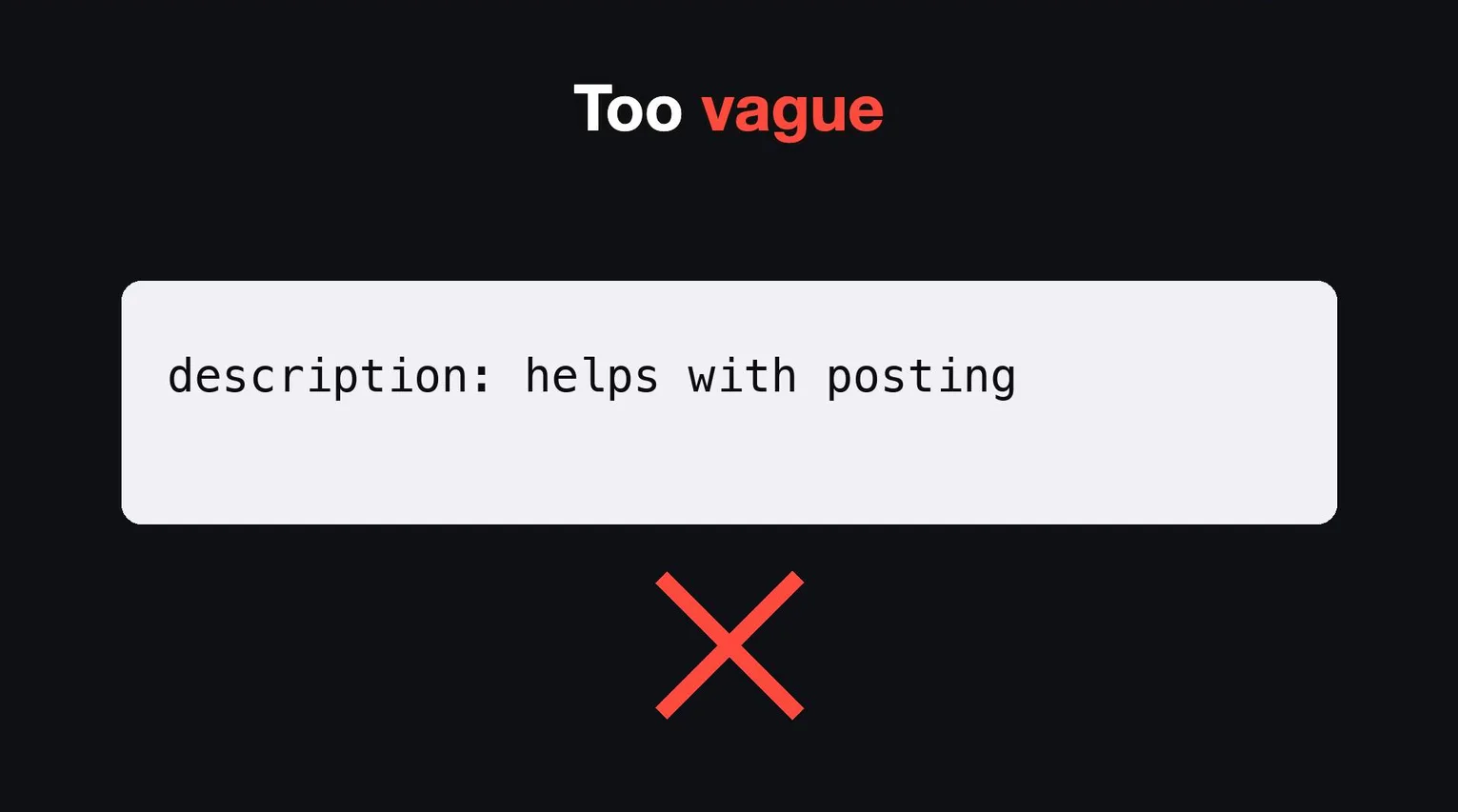
First, a vague description. I wrote "helps with posting", and Claude almost never opened it.
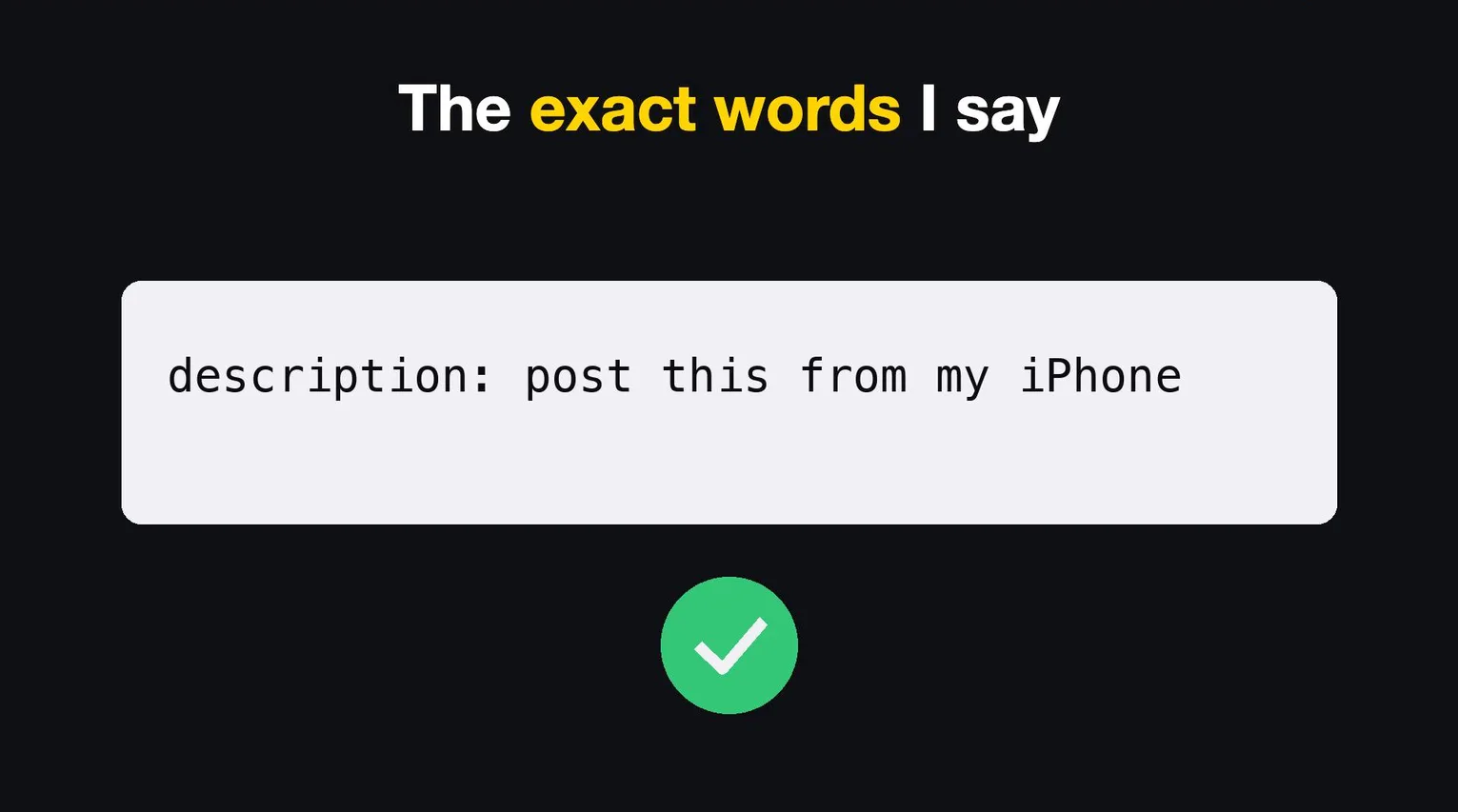
When I changed it to the exact words I say, like "post this from my iPhone", it started opening every time.
Second, two skills with the same trigger words, without a line between them. The fix is the table above: each one says what it does, and where it stops and hands over.
And one thing a skill is not for. A job you'll do once. Just ask. Skills are for the second and third time.
A checklist before you save one:
- Have you typed this instruction at least three times?
- Does the description say what it does and when to use it, in the words you actually say?
- Is it in the third person?
- Are the traps written down, not just the happy path?
- Does it say where it stops, if another skill is close?
- Is the body under 500 lines, with long reference material in separate files?
- Did you open a new chat, say the words, and watch it load?
- If a step must never be skipped, is there a hook in front of it, not just a line in the skill?
That's the whole thing. One folder, one file, two lines at the top.
A prompt is something you say. A skill is something you never have to say again.
Sources:
- Claude Code Docs, "Extend Claude with skills" (code.claude.com/docs/en/skills), read November 8, 2026
- Claude Docs, "Agent Skills overview" (platform.claude.com/docs/en/agents-and-tools/agent-skills/overview), read November 8, 2026
- Claude Docs, "Skill authoring best practices" (platform.claude.com/docs/en/agents-and-tools/agent-skills/best-practices), read November 8, 2026