 Hisashi Space
September 27, 2026 · 3 min read
X lead gen ads are back: how to collect names and emails without sending anyone off X
Can you collect leads with X ads? Names and email addresses, straight from the ad?
Yes. X launched Lead Gen Ads on August 26, 2026. Tap the ad, and a form opens inside X. People fill it in without leaving the app, and you get the leads as a CSV or sent to your CRM.
This isn't the first time. Twitter had lead generation cards from 2013, and stopped showing them in March 2017. Nine years later, lead capture is back on X in a new form.
What follows is based on X's own setup guide for advertisers (August 2026).
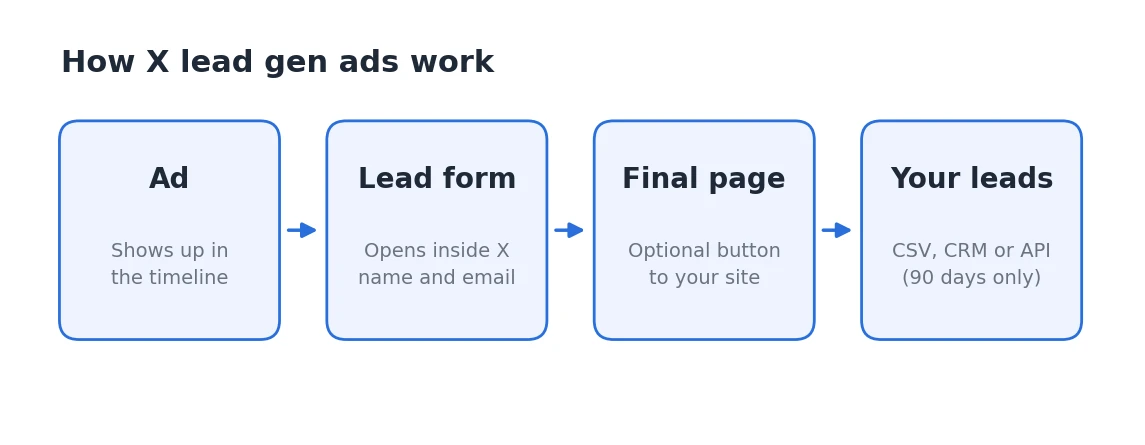
What people see
- The ad shows up in their timeline
- They tap the button (such as "Learn More") and a form opens inside X
- They enter their name and email and submit
- A final page appears. You can put a button there that takes them to your site
You build it in the opposite order: the form first, then the ad.
Step 1: Build the lead form
In Ads Manager, open Leads center from the left menu and click New form.
Content tab
・Name: the form's internal name ・Introduction (optional): a headline and description shown above the form. The description can hold extra consent text ・Purpose: what the form is for. This only shows when Introduction is turned off ・Fields: what you ask people to fill in. Email is on and required by default ・Privacy policy: your company name and a link to your privacy policy. The URL is reviewed before the ad can run
Fields you can add
・Contact: email, phone number, X handle, street address, city, state or province, country, post or zip code ・User: full name, first name, last name, date of birth, gender ・Work: company name, job title, work email, work phone number
The guide notes that the available fields may change.
Final page tab
・Headline ・Description ・Website button (optional): the URL and the button label
Step 2: Create the campaign
On the campaign form, pick Leads as the objective and name the campaign.
You can also attach a lead form to ads with other objectives, such as Reach or Video Views, by choosing the lead form as the ad's destination. In that case, delivery is optimized for the objective of that campaign, not for leads.
Step 3: Set up the ad group
・Ad group name ・Budget (daily budget; a total cap is optional) ・Start time (end time is optional) ・Demographics (age targeting is 18 and over only) ・Placements: home timeline, search results, profiles, replies
Step 4: Create the ad
・Ad name and post text ・The lead form to attach ・Call to action ・Image or video
The call to action is one of: Book Now, Buy Tickets, Contact Us, Donate, Download, Get Offer, Learn More, Shop Now, Sign Up, Watch Now.
You can also build the ad in Composer. Choose Lead form as the destination, then pick the form and the call to action. Posts made in Composer can also go into Takeover campaigns (Timeline Takeover and Timeline Reach only).
Step 5: Review and launch
Choose a funding source, check the campaign, and click Launch.
Reporting
Ads Manager shows the usual metrics plus lead metrics: Leads and Cost per lead.
Getting the leads out
Three ways:
・Download from Leads center as CSV or XLSX ・Connect a CRM (HubSpot, Salesforce, Zapier): pick the form and paste the webhook URL from your CRM ・Pull them through the Ads API
Four things to sort out before you launch
Leads are only available for 90 days after they're submitted. Connect your CRM or Zapier before the ad goes live, or decide who downloads them and how often.
Your privacy policy URL gets reviewed. If your site doesn't have a privacy policy page, the ad won't run.
Age targeting is 18+ only. You can't use it to reach anyone younger.
Email is required by default. In the guide, the personal email field is switched on and required from the start.
Summary
Yes, you can collect names and email addresses with X ads alone. Build the form, run a campaign with the Leads objective, and take the leads out as CSV or into your CRM.
Have a privacy policy page and a place for the leads to land before you start, and nothing will stop you halfway.