 Hisashi Space
September 21, 2026 · 4 min read
Your Google sign-in screen may be showing your personal Gmail. Here's how to change the user support email
An AI assistant can click through a cloud console for you. Ask it to create a project, turn on an API and set up the sign-in screen, and it'll open the pages, fill them in and hit save.
I've been using Claude Code for exactly that while building Pinateca, a kanban-style task tool. It's fast and it's accurate, and most of the time it does what I asked without me touching anything.
While setting up one project, I stopped it at one field. It was about to put my personal Gmail on the Google OAuth consent screen.
What I was setting up
I was checking whether Pinateca could pull captions from YouTube videos. To read captions through the API, the video's owner has to sign in with Google and grant access, so I needed a Google Cloud project and a consent screen: app name, logo, privacy policy link, and a field called "User support email".
In that field, the assistant picked the first option in the dropdown, which was my Gmail.
Who actually sees that field
On the Google sign-in screen, your app's name is a blue link. Click it and a "Developer Information" box opens, and the user support email is right there.
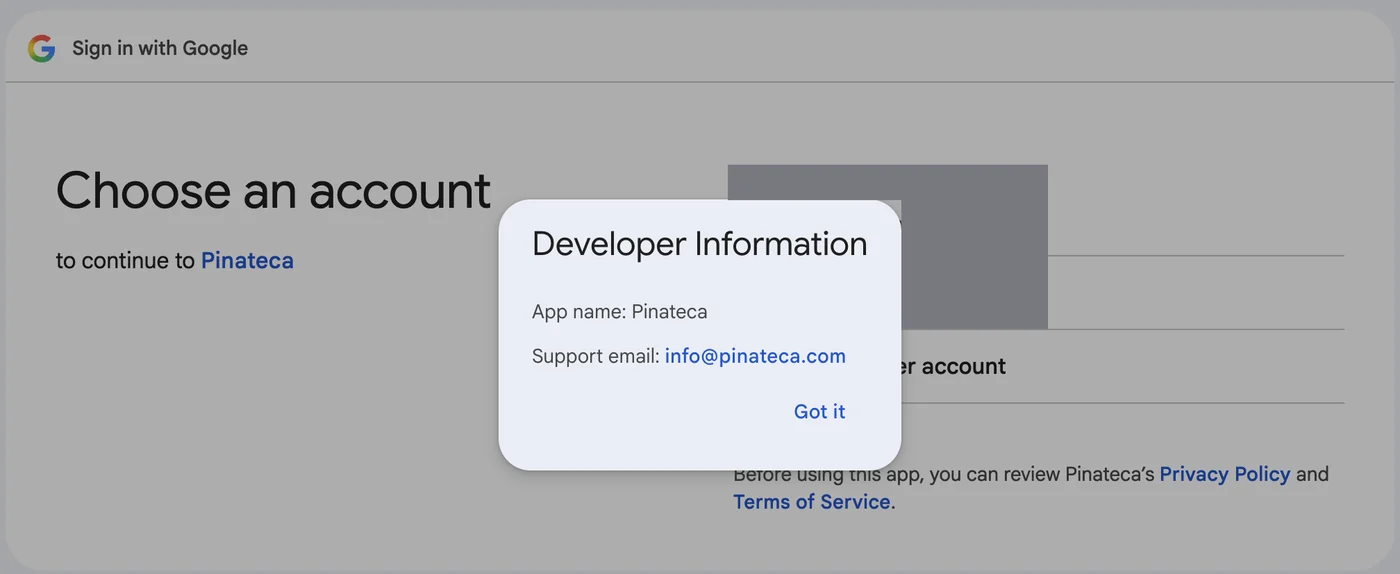
So it isn't buried in some settings page. Any stranger signing in to your product can see it with one click. If what they find is a personal Gmail instead of a support address, I think a fair number of people would hesitate. I would.
It wasn't really the AI's fault
Then I looked at the dropdown, and there's very little in it. Google only lets you pick the email of the Google account you're signed in with, or a Google Group that account manages.
I'd created the project with my own account, so the product's info@ address wasn't in the list at all. The assistant picked the only sensible-looking option it was given.
There's a second email field on the same page, "Developer contact information". That one is for Google to reach you, users never see it, and you can type anything. The assistant had correctly put the product's info@ address there.
Two fields that look almost the same. One is public and one isn't, and only the private one lets you type freely. I'm pretty sure a human setting this up would trip in the same spot.
How I changed it
I had three ways out. I could turn the product's info@ address into a Google account, create a Google Group (but then the address ends in googlegroups.com, not your domain), or pay for Google Workspace on the product domain.
I went with the first one, since it's free. Google lets you create an account from an existing, non-Gmail address. You don't get a new inbox; mail keeps landing wherever it already does.
The steps:
- Create a Google account with "Use your existing email" and enter info@yourdomain. The verification code goes to that address.
- From the account that owns the project, open IAM and add info@yourdomain as a principal with the Owner role. (I used Owner. I didn't test whether a narrower role is enough to edit branding.)
- Accept the invitation email from the new account. It asks for a country and the Cloud terms.
- Sign in as info@yourdomain, open Google Auth Platform, then Branding. The new address is now in the dropdown. Pick it and save.
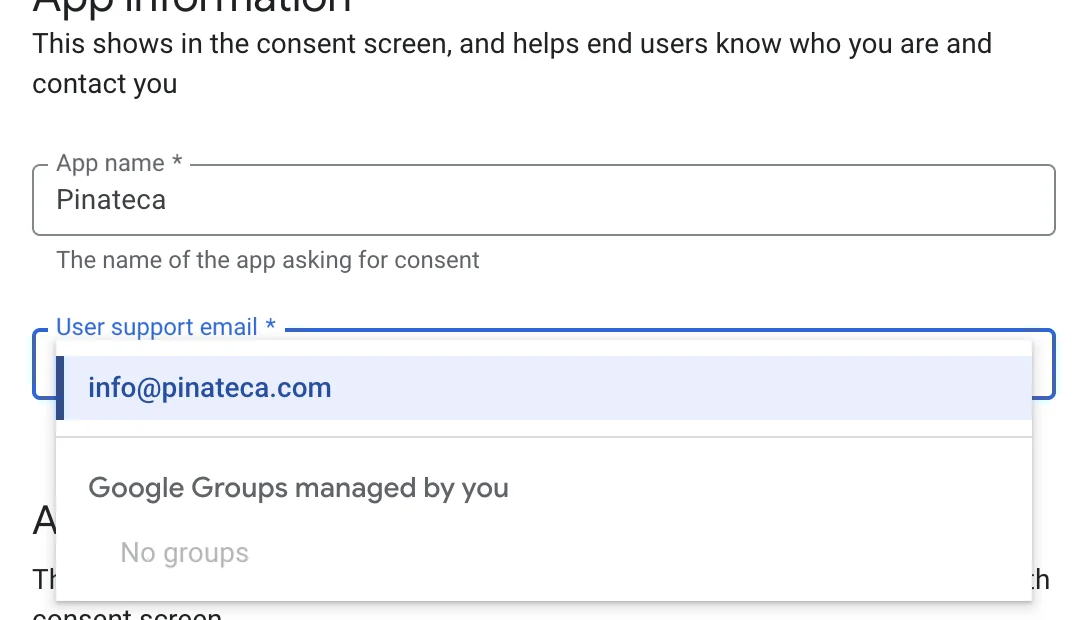
No need to recreate the project.
One step needed me in person. At the end of account creation Google asked me to scan a QR code with my phone. It didn't ask for a phone number, just a scan and a few taps. The "add a phone number" screen after that is for recovery and can be skipped.
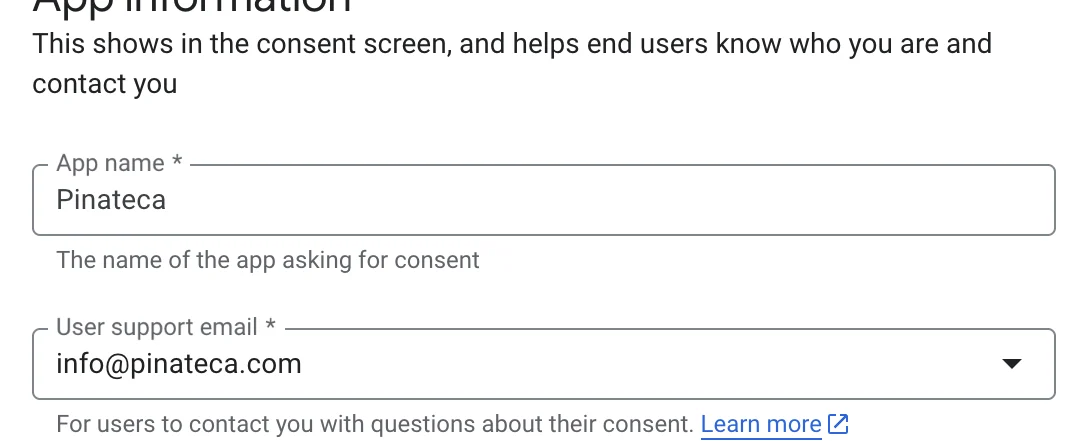
Afterwards I clicked the app name on the sign-in screen again and checked that Developer Information showed the product's info@ address. While I was there I also set the logo and the privacy policy and terms links to the product's.
What I check myself now
This gave me a clearer rule for working with an AI assistant.
It chooses the most reasonable option from what's on the screen, and when the options themselves are wrong, it can't tell.
That matters most for anything outsiders see: support addresses, sender addresses, public profiles, the name and logo on a sign-in screen. Those are the fields I look at myself now. The rest of the clicking I'm happy to hand off.
Who actually did the clicking
I didn't do this setup by hand. I told Claude Code what I wanted, and it did the work through Kagemusha, a Mac app I built. The only things I touched were signing in again, scanning the QR code, and granting the IAM role.
Kagemusha turns a website into its own Mac app. Claude Code connects to that app while it's still logged in and works the screens from there.
https://kagemusha.app/?utm_source=hisashi_space&utm_medium=referral&utm_campaign=oauth-support-email